Capture. Annotate.
Extract OCR & Explain with AI
BerryShot is the ultimate screen capture utility for macOS. Take instant screenshots, sketch annotations pixel-perfect, OCR extract text offline in 0.1s, and explain code instantly with ChatGPT & Claude.
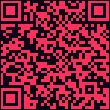
Get BerryShot for Mac Scan to Download
BerryShot is a native macOS application. Click below to copy the download link or download the installer directly. Scan QR code using your phone camera to download the `.dmg` package directly.
Download DMG File →100% Offline & Private
Local OCR runs directly on device via Apple's Vision Framework. Images are never uploaded to servers, keeping your confidential data secure.
AI Explainer & Translate
Connect to Claude or ChatGPT in seconds. Instantly explain algorithms, extract code snippets, translate terms, or draft summaries.
Lightweight & Native
Designed natively using Apple SwiftUI for macOS 14.0+. Runs silently in your Menu Bar, utilizing negligible RAM or battery power.
See the Actual App in Action
Click the buttons on the floating BerryShot toolbar at the bottom of the code snippet below to interact with the actual features of our app.
BerryShot Screen Capture Closed
You closed the capture window (equivalent to pressing ESC). Click below to reboot the workspace simulator.
2
3
4
5
6
7
8
9
10
11
12
13
14
15
import Vision
public class OCRService {
public func extractText(image: CGImage) async -> String {
// Initialize request handler locally
let request = VNRecognizeTextRequest { req, err in
guard let results = req.results else { return }
let text = results.compactMap { $0.topCandidates(1).first?.string }
print("Extracted text successfully")
}
request.recognitionLevel = .accurate
return "BerryShot OCR"
}
}
Designed to Maximize Your Workflow
Whether communicating with developer teammates, copying code snippets, or explaining layouts, BerryShot supplies a complete toolkit.
Pixel-Perfect Sketching and Annotation Tools
Never load heavy image editors again. Draw attention to errors, highlight key layouts, or redact information directly on your screen selection layout.
- Smooth freehand drawing and straight diagonal lines
- Add rectangles, circles, or outline regions
- Inject direction arrow guides and custom textual labels
Translate, Transcribe, and Transmit via AI
BerryShot doesn't just store pictures. It reads them. Turn screenshots into editable textual arrays instantly or run complex AI requests in milliseconds.
Native OCR in 0.1 Seconds
Utilizes Apple Vision libraries optimized for Apple Silicon (M1/M2/M3/M4) chips. Fully localized, no internet connection is required.
Modular AI Providers
Easily input your Anthropic or OpenAI API keys in Settings. Query models on-the-fly without paying expensive third-party wrappers.
Configurable Output Language
Toggle default response parameters between English, Vietnamese, or Japanese. Output is formatted and ready to copy.
Designed Around Hotkeys
Designed to work asynchronously behind the scenes, BerryShot binds to shortcuts without blocking your desktop layout.
Select Region
Press the global shortcut to freeze the display and draw a selection rectangle over any section.
Apply Annotations
Highlight errors with custom arrows, write text blurbs, or draw frames on selected code layouts.
Run OCR & AI
Tap OCR to copy codes instantly, or call AI to explain blocks without opening separate browser tabs.
Copy or Share Link
Files are saved locally or uploaded to cloud storage providers. Shareable URL is copied automatically.
Frequently Asked Questions
Everything you need to know about setting up and configuring BerryShot.
Cmd + ,), navigate to AI
Configuration, and choose your preferred model provider (Claude, OpenAI, or a
Custom OpenAI-Compatible endpoint). Insert your personal API Key, and you can query the
model immediately from the capture toolbar.
Cmd + Shift + X. You can customize
this shortcut recorder view under the Settings window to map it to any custom hotkey combo
of your choice.
Elevate Your Screen Workflows
MACOS NATIVE UTILITY
Experience the best way to transcribe images, draw notes on snippets, and query AI models natively from your menu bar. Set up in less than 5 seconds.